The thought bubble
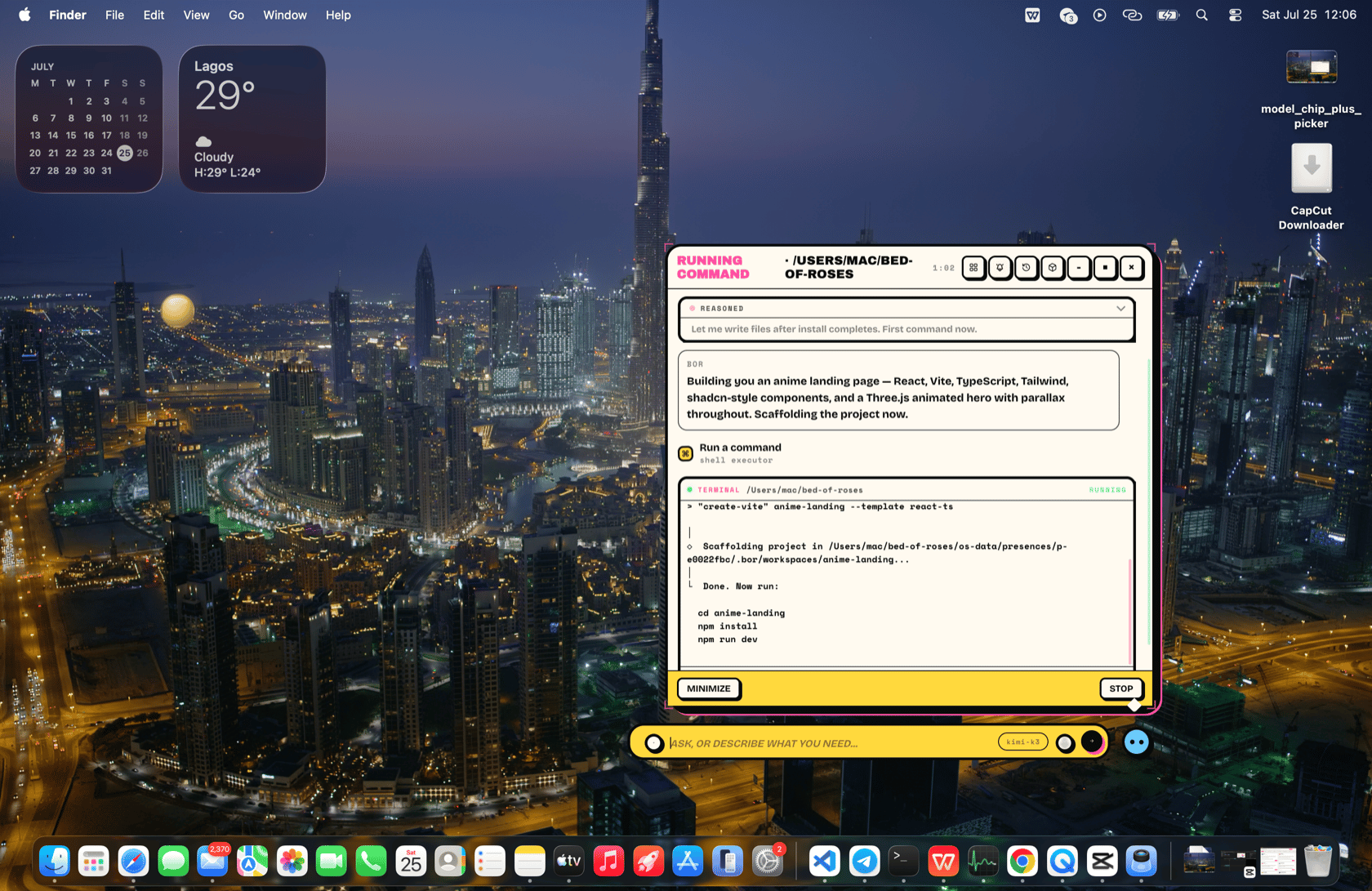
While BOR works, a thought bubble opens and shows you everything as it happens. It isn’t a log — each piece of work is a live, streaming card:- Reasoning cards — the model’s thinking streams token by token into a collapsible card (“reasoning” while live, “reasoned” when done). You can watch it plan or ignore it.
- Editor cards — every file BOR writes streams in line by line, with the file path, a live caret, diff stats, and a saved/failed status.
- Terminal cards — commands show the
$prompt, live stdout and stderr, the working directory, and the exit status. - MCP cards — calls to connected services and MCP servers stream their arguments as they’re composed, then show the result.
- Browser cards — web sessions show the current page and an expandable console.
- Build cards — apps and shortcut cards being generated show their build phase, then go live.
- Media, image, wait, and progress cards — everything else BOR produces or waits on.
Stop and resume
The Stop button in the bubble’s footer cancels a running task immediately — the thread stays open with a quiet “Stopped” line, and the footer’s primary action becomes Resume. Press Resume and BOR picks the task back up exactly where it left off, with full context of what it had already done; send a new message instead and the old task stays cancelled. The + button in the bubble’s head row starts a fresh thread at any time — the discarded conversation is still in History, resumable from there.History
The history button reopens past conversations — not as plain text, but with every card restored: the code that was written, the terminals, the images, the browser steps. Reopening a conversation is a real resume; you can keep going from where it ended.Notifications
The bell opens the notifications inbox — where background tasks, scheduled jobs, and anything BOR wants to tell you later land. Unread items show as a badge on the orb and as a chip under the collapsed orb. Every notification has a Continue in chat action that opens a fresh conversation seeded with that notification’s content, so “your 9am inbox summary is ready” becomes “…now draft replies to the two urgent ones” in one click. The panel renders inside the bubble: unread items sit on top with a dot marker, opening one marks it read, and the panel is also reachable any time from the options menu (the three-line button in the input bar). See Background tasks.The model chip
The input bar shows a chip with the active model’s name. Click it to open the model picker: every provider you’ve connected, its models, and its connection state. Pick a row to switch models mid-conversation; unconfigured providers route you to their settings. Reasoning effort is set per provider in provider settings — see Configuration.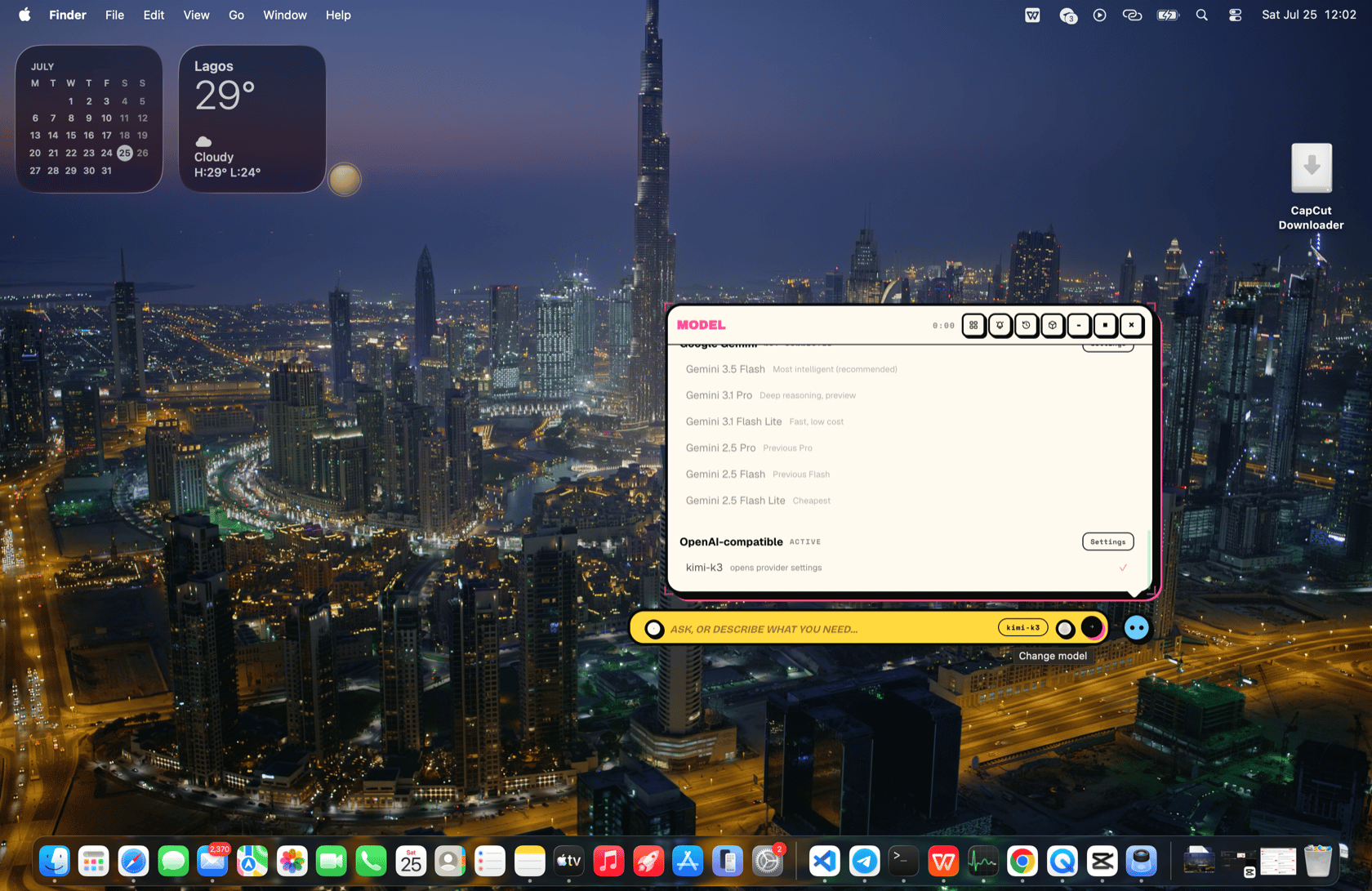
Attaching context
Two ways to give BOR files:- Drag and drop any file, image, folder — even a fresh macOS screenshot thumbnail — onto the composer or the bubble. The orb visibly catches the drop.
- The + button opens a native file picker.
It behaves like part of the desktop
- BOR applies generated wallpapers to your real macOS desktop.
- The presence hides itself during screen captures, so screenshots show your apps, not the orb.
- File paths in BOR’s replies are links — click one to reveal it in Finder.
Related
- Building apps — what the presence builds.
- Themes — restyling the orb, bubble, and cards.
- Multi-presence — running several orbs at once.