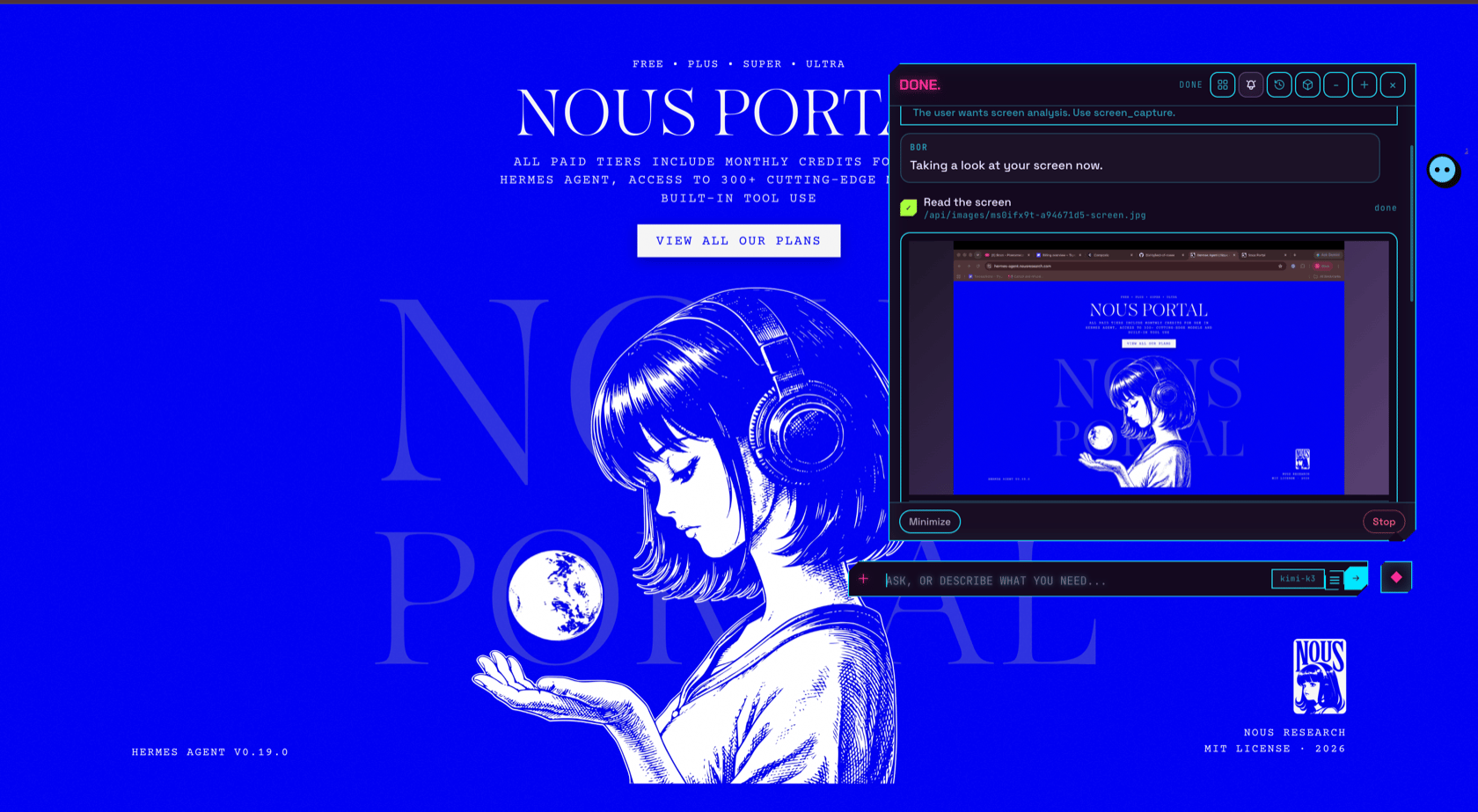
How it works
- It looks. BOR captures your screen — hiding its own orb and bubble first, so it sees your apps, not itself. The capture appears as a card in the bubble, so you always see what it saw.
- It finds. A vision model locates the element you described (“the blue Share button”) and returns exact click coordinates.
- It acts. Clicks, typed text, and keyboard shortcuts are delivered to the real app. Opening applications works by name.
- It verifies. A click only proves a click was sent — so BOR re-captures the screen and confirms what actually changed before claiming success.
Permissions
Computer use needs two macOS permissions, both requested during onboarding (and grantable later in System Settings → Privacy & Security):- Screen Recording — to see the screen.
- Accessibility — to click and type.
When BOR uses it
- Native apps — Figma, Xcode, Mail, Finder, anything that isn’t a website.
- Last-resort web — if a page defeats the ambient browser, BOR can drive a visible browser by sight.
What to say
- “In Figma, select the frame tool.”
- “Open Xcode and click Run.”
- “What’s on my screen right now?”
- “Fill in this form in the app I have open.”