bor onboard), a short setup flow collects everything the presence needs to feel like yours. Every choice can be changed later — by asking BOR, or by re-running onboarding.
The steps
1. Welcome
A short introduction.2. Name your AI
What the presence calls itself. Default: Atlas. You can rename it any time later (“call yourself Juniper from now on”).3. Pick a world
Choose a starting theme from the eight base themes — Bloom (default), Cartoon Brutalist, Warm & Earthy, Neo Brutalist, Y2K Frutiger Aero, Liquid Glass, Pixel CRT, Risograph. Picking one restyles the rest of onboarding immediately so you preview it live. See Themes.4. Choose a presence
Pick the orb’s animated character — Nova, Cipher, Aria, or Echo — and a fallback color from eight swatches (Pearl, Amber, Ember, Bloom, Aurora, Frost, Lilac, Onyx).5. Allow computer control
macOS permission prompts for Automation + Accessibility (so BOR can click and type) and Screen Recording (so it can see the screen). This step is optional and skippable — computer use just stays off until you grant them.6. Connect a model
Pick at least one provider:
Each provider’s panel lets you pick a model and a reasoning effort — Off, Low, Medium, High (recommended), or Max — which controls how much the model thinks before acting. You can connect several providers and switch between them from the model chip later.
7. Connect Bed of Roses to your daily life
The final step is the connectors gallery: paste one Composio key and Gmail, Google Calendar, Drive, Docs, Sheets, Outlook, WhatsApp, YouTube, Slack, Notion, Linear, and GitHub become one-click sign-ins — plus a “More apps” browser with roughly a hundred more services, iMessage via Full Disk Access, and token fallbacks for Slack/Notion/GitHub. Everything here is optional and can be done later.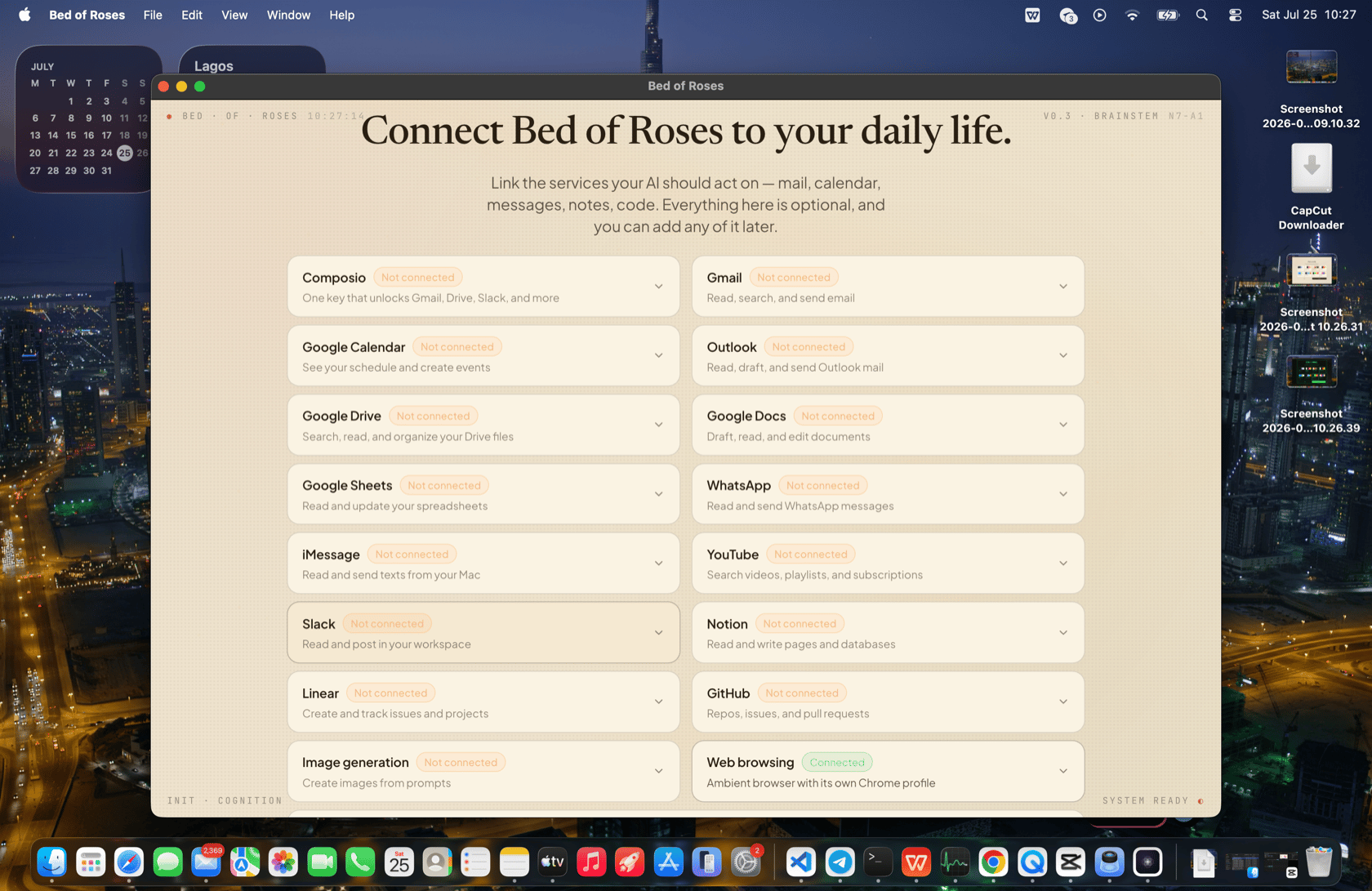
After onboarding
- Change anything by asking: name, personality, theme, provider.
- Re-run any time:
bor onboard(this creates a new presence — see Multi-presence). - Onboarding runs per presence: each presence has its own model, name, look, memory, and connections.