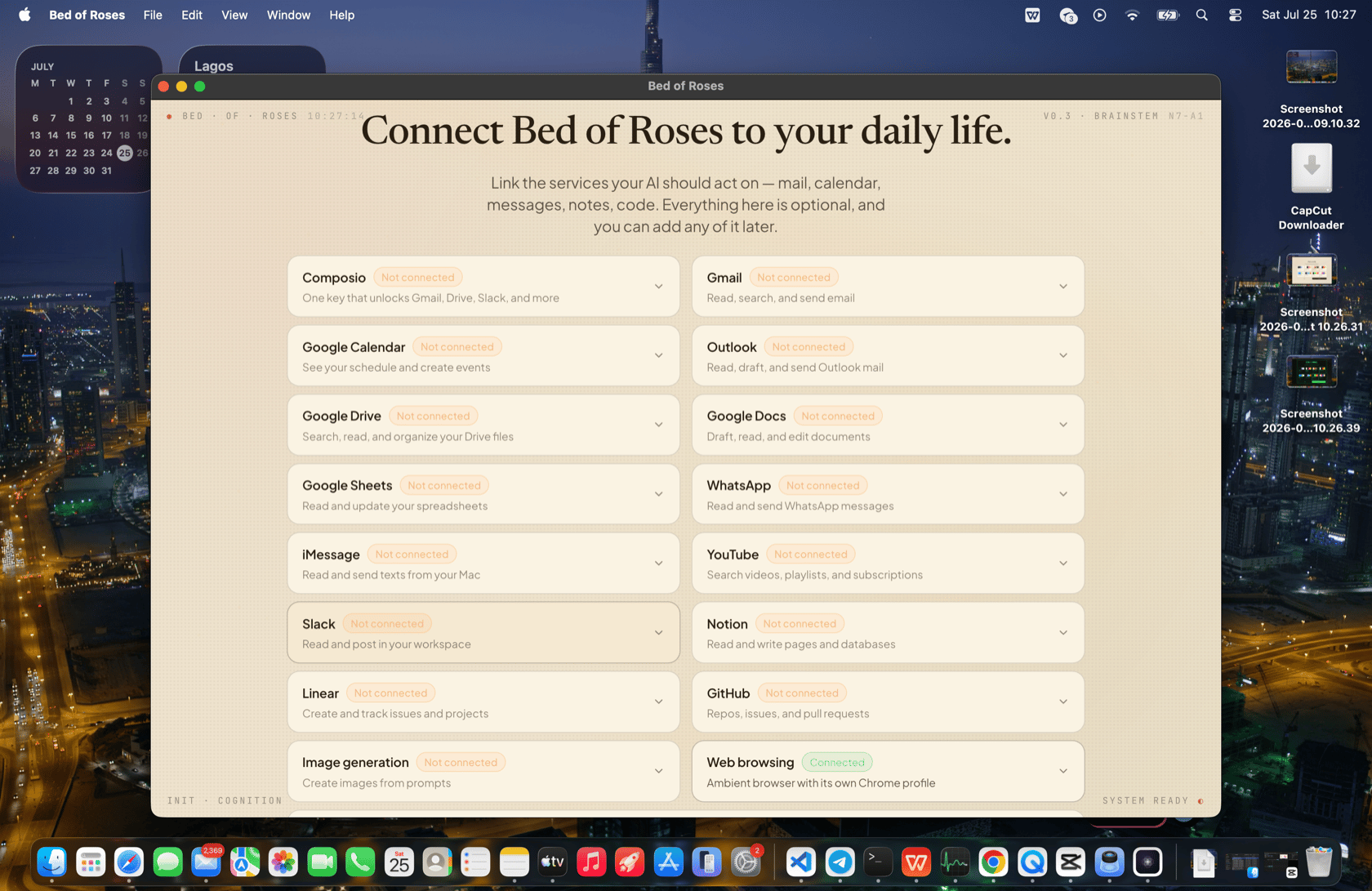
One key, one-click sign-ins
Paste a single Composio API key (free account at composio.dev) and every service card below becomes one-click: press Connect, sign in on the provider’s own page, done.- Gmail, Google Calendar, Google Drive, Google Docs, Google Sheets
- Outlook
- WhatsApp, YouTube
- Slack, Notion, Linear, GitHub
iMessage
iMessage connects locally, not through a cloud service: grant Bed of Roses Full Disk Access (System Settings → Privacy & Security → Full Disk Access), press Connect, and BOR verifies it can read your Messages database. Your messages never leave your machine.Prefer tokens? API-key fallbacks
Slack, Notion, and GitHub also accept a manually created token (a Slack bot token, a Notion internal-integration secret, a GitHub personal access token) if you’d rather not use OAuth. BOR verifies each token live against the service before saving it.Connected services become real tools
This is the point: once a service is linked, it becomes a first-class tool the AI calls directly. With Gmail connected, “archive everything from that newsletter and draft a reply to Sarah” happens through the Gmail API — BOR will never open a browser to poke at a webmail UI when the real tool is available. Under the hood each connection is wired up as an MCP server and hot-loaded, no restart needed. Two built-in capabilities also appear in the gallery with nothing to configure:- Image generation — uses the OpenAI or Gemini key from your model setup.
- Web browsing — the ambient browser, with an “Open sign-in browser” action so you can log into sites BOR will browse for you.
What to say once connected
- “What’s in my inbox this morning? Reply to anything urgent.”
- “Put lunch with Dana on my calendar for Thursday at one.”
- “Post the release notes to #general on Slack.”
- “Open a GitHub issue for the bug we just found.”
- “Text Mom that I’ll call tonight.” (iMessage)
Where it’s stored
Connector tokens live in your presence’s localconfig.json — on your machine, per presence, never echoed back out by the API. Each presence has its own connections, so a work presence and a home presence can be linked to different accounts.